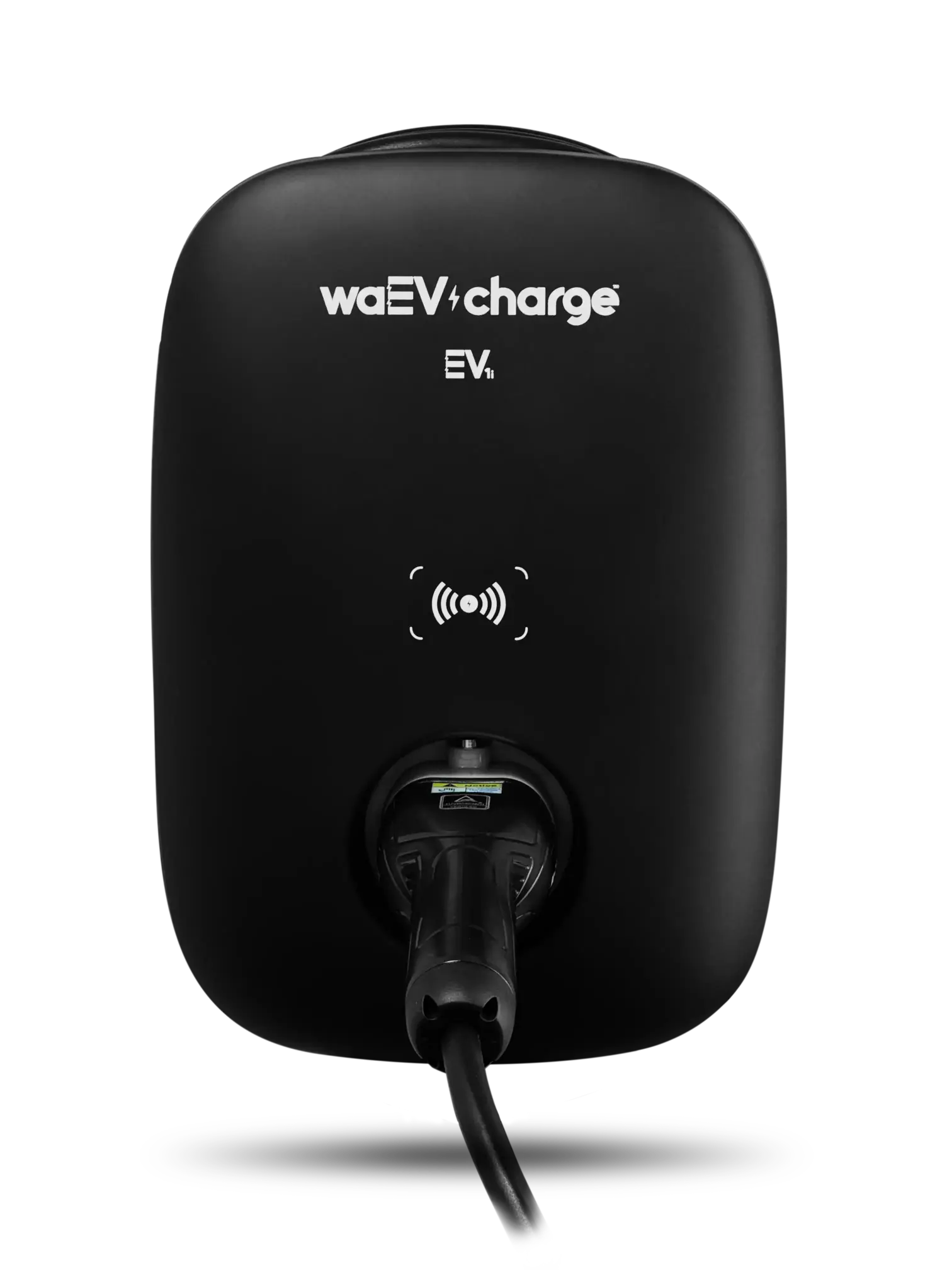
waEV-charge
Set up in your charger's app
- Setup time
- 3-5 min
- Models
- EV1
- App required
- waEV-charge app
Step by step
Open the waEV-charge app.
Download and open the waEV-charge app. Go to Installer Setup.
Select your charger from the device list.
Find and select your waEV-charge charger from the list of available devices.
Enter the Access Code.
Enter the Access Code found in your charger manual to unlock the charger settings.
Go to Advanced Settings > OCPP URL.
Navigate to Advanced Settings and find the OCPP URL field.
Copy the Splash URL below.
wss://cpms.splashrenewable.co.uk/Paste the URL and set Auth Key.
Paste the Splash URL into the OCPP URL field. Enter "NULL" for the Auth Key field.
Reboot the charger.
Reboot the charger to apply the new OCPP configuration.
Open Splash Share.
Go to My chargers, then tap Add new charger.
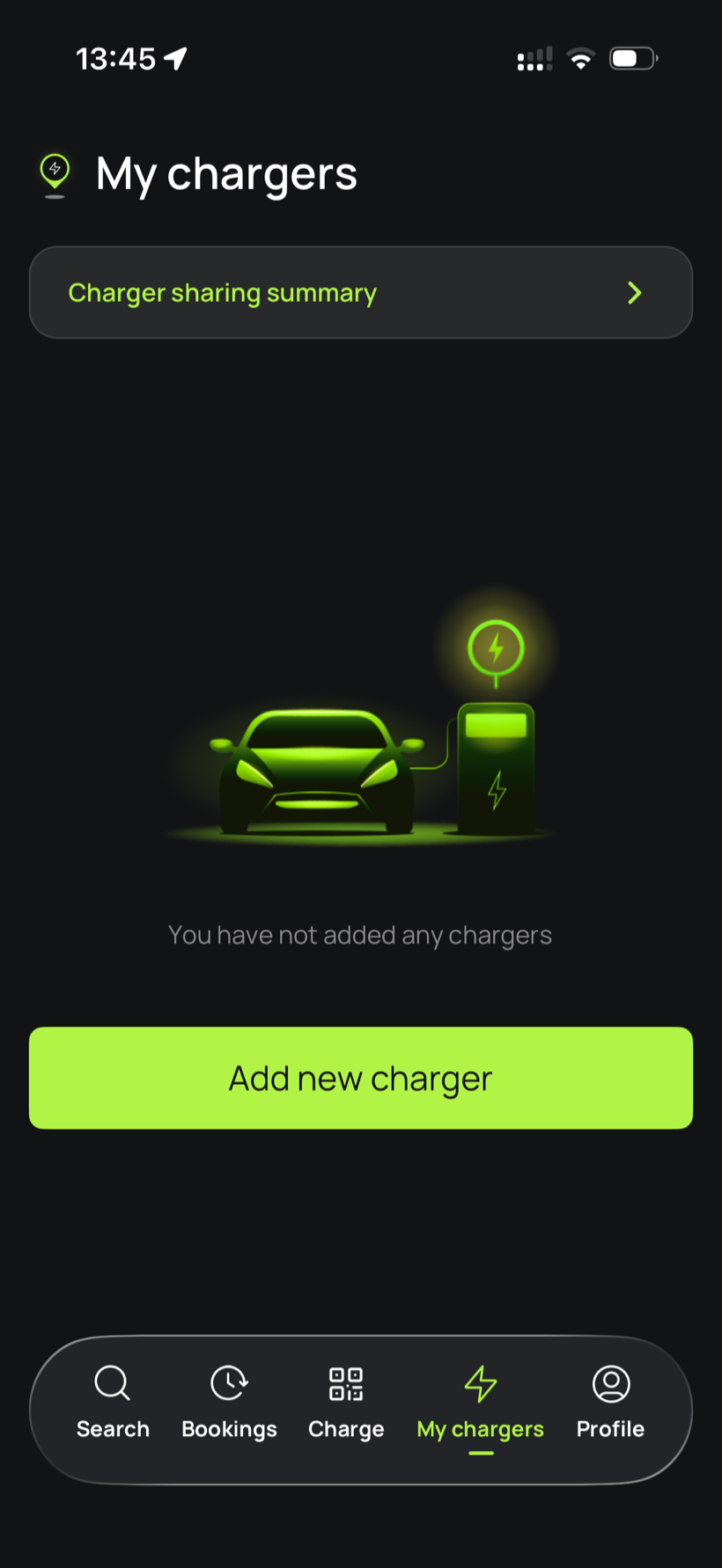
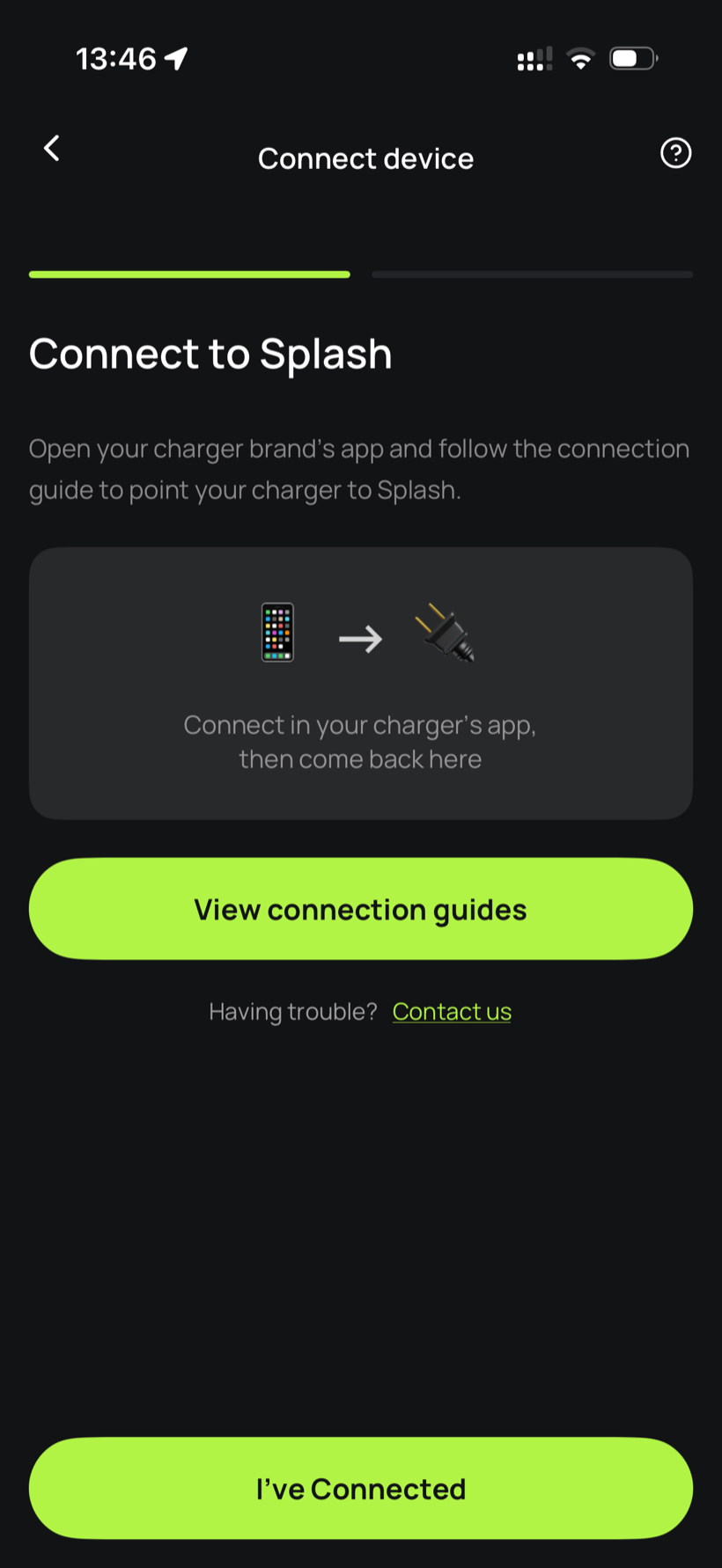
Tell Splash you're connected.
The app first asks you to connect through your charger brand's app. That's what you've just done in the steps above, so tap I've Connected.
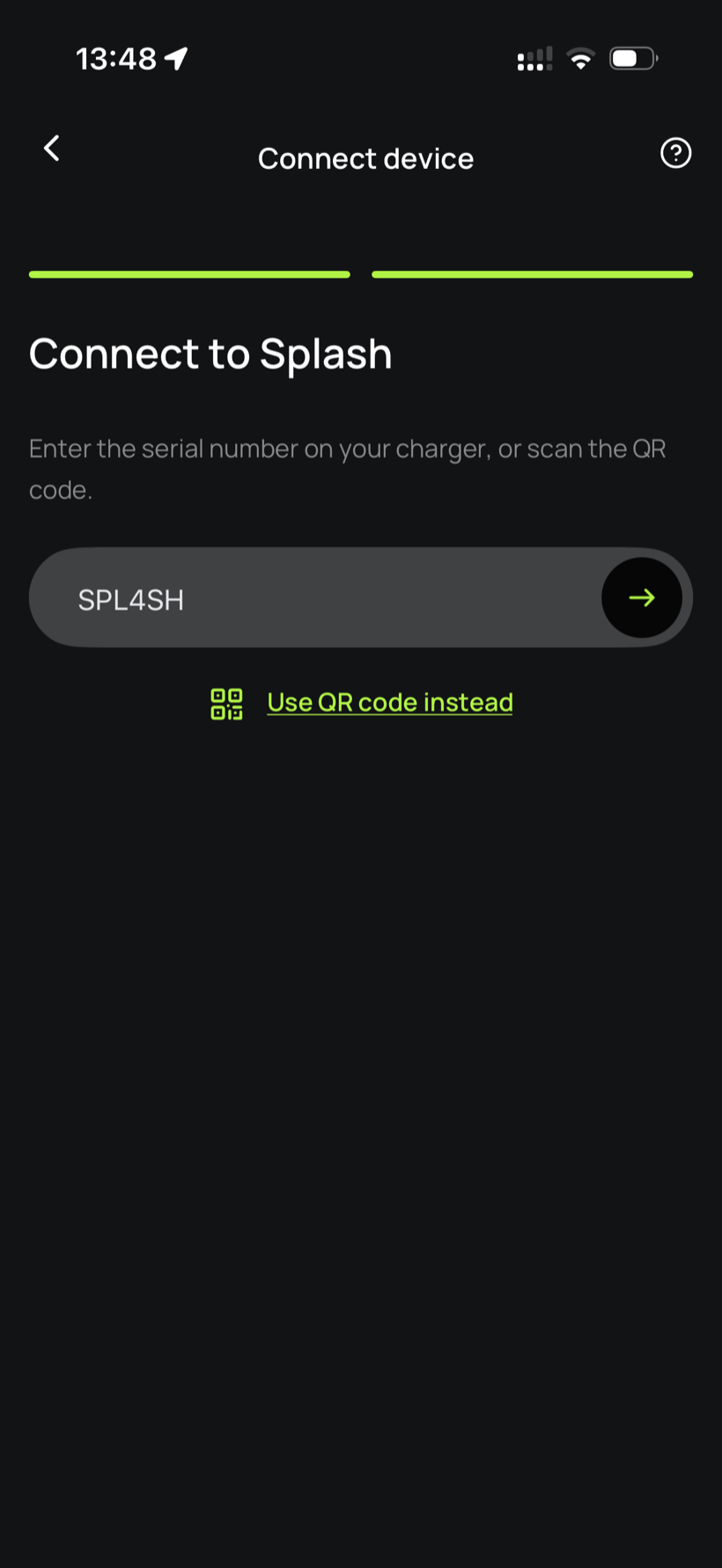
Enter your serial number.
Enter the serial number in the field.
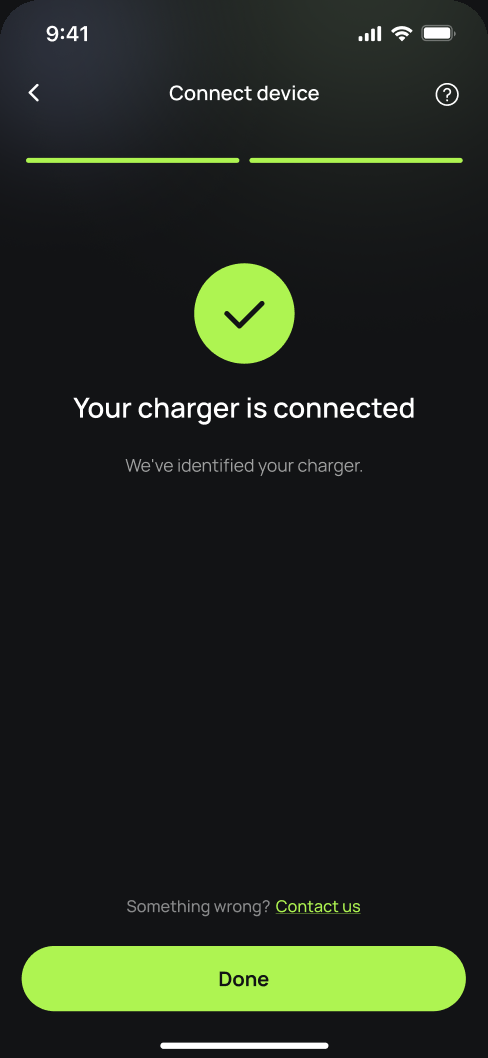
You're connected.
Splash finds your charger and confirms the connection. Tap Done.
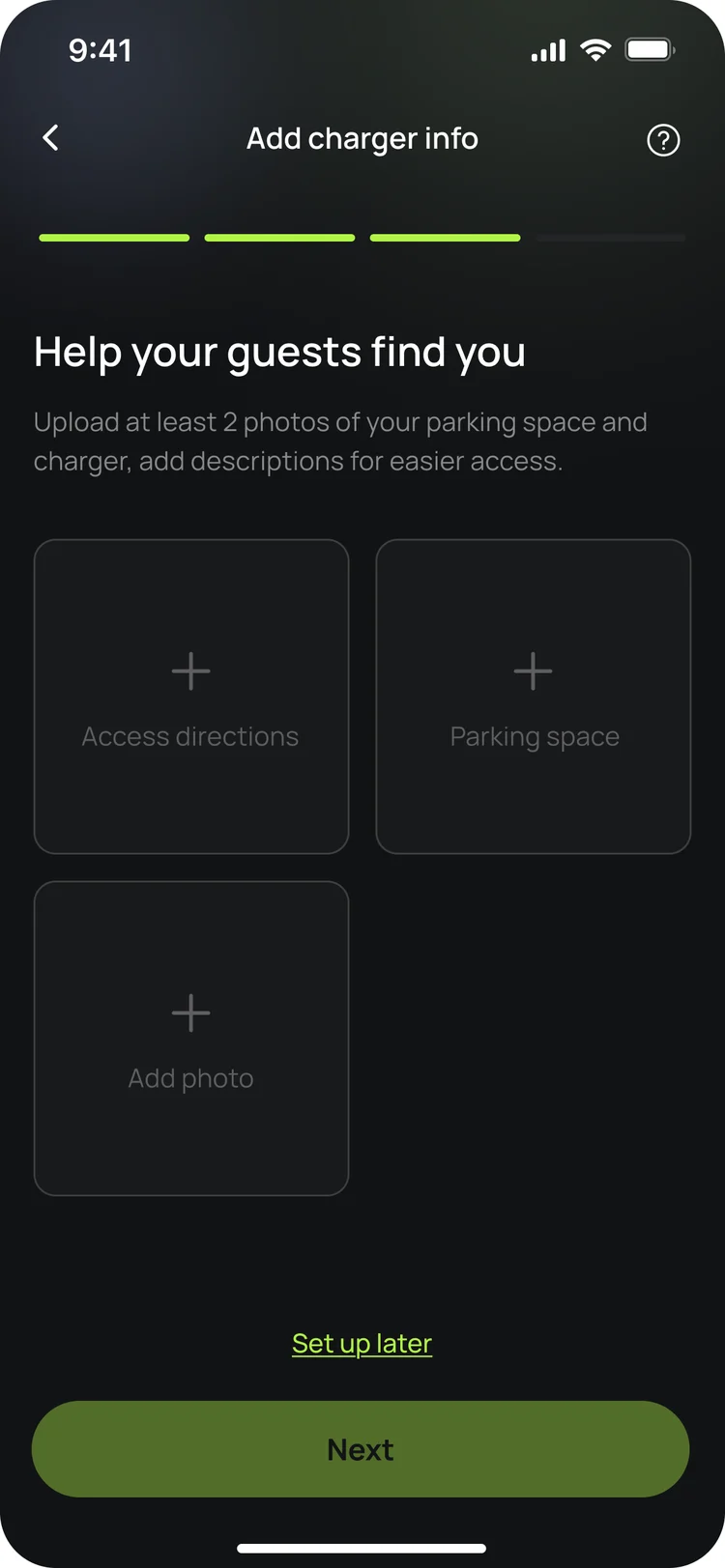
Finish setting up in the app.
Your charger isn't live yet. In the app, add your charger's details, including at least two photos of your parking space and the way in, so guests can find it. Once you're done we'll know, and we'll post your Splash QR sticker out to you so guests can scan it to start a session.
Updated 4 Oct 2026