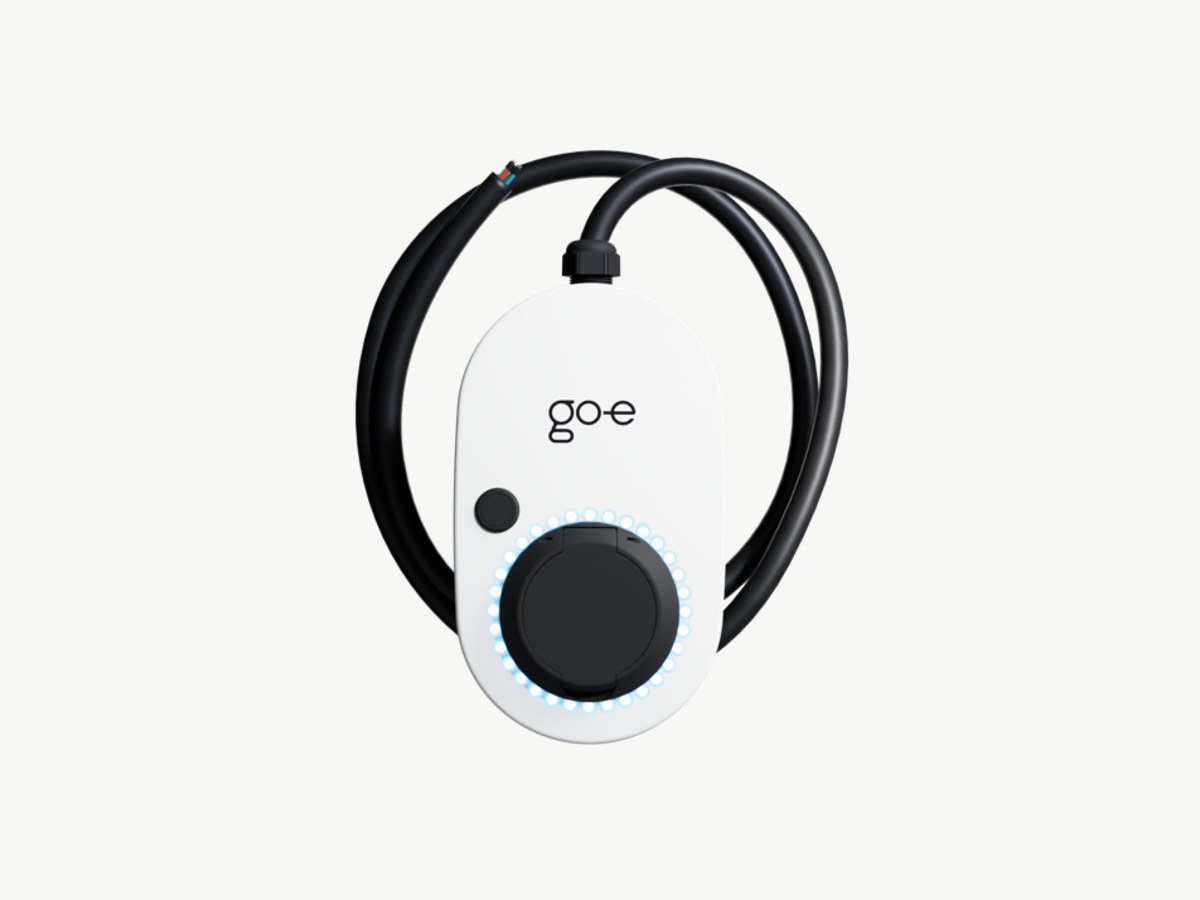

go-eCharger
Set up in your charger's app
- Setup time
- 2-3 min
- Models
- Home · Gemini · Gemini 2.0
- App required
- go-eCharger app
Step by step
Open the go-eCharger app.
Open the go-eCharger app on your phone. Make sure your charger is connected to WiFi.
Go to Internet tab > OCPP.
Navigate to the Internet tab in the app settings, then find the OCPP section.
Enable OCPP.
Toggle OCPP on to enable the backend connection.
Copy the Splash URL below.
wss://cpms.splashrenewable.co.uk/Enter the custom server URL.
Paste the Splash URL into the OCPP server URL field. Save the settings.
Open Splash Share.
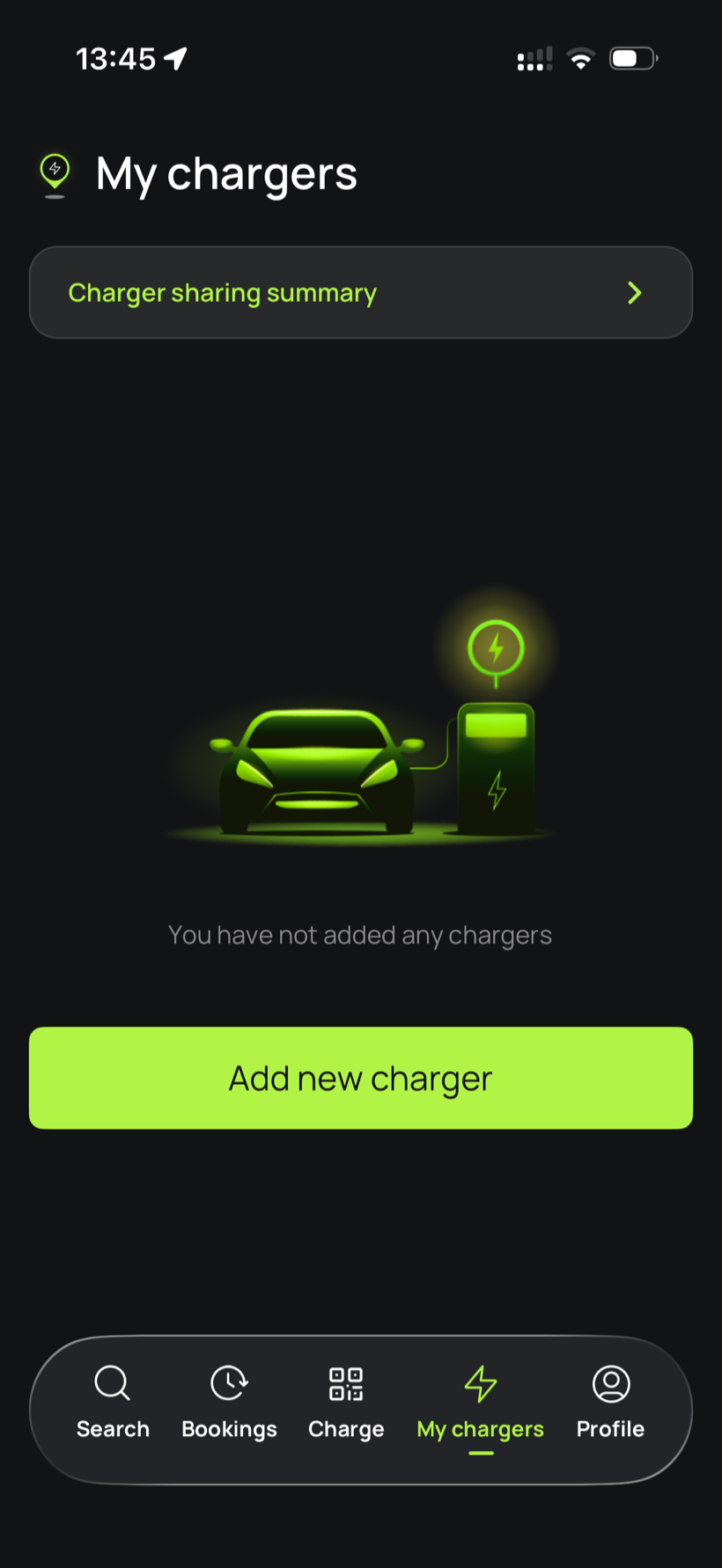
Go to My chargers, then tap Add new charger.
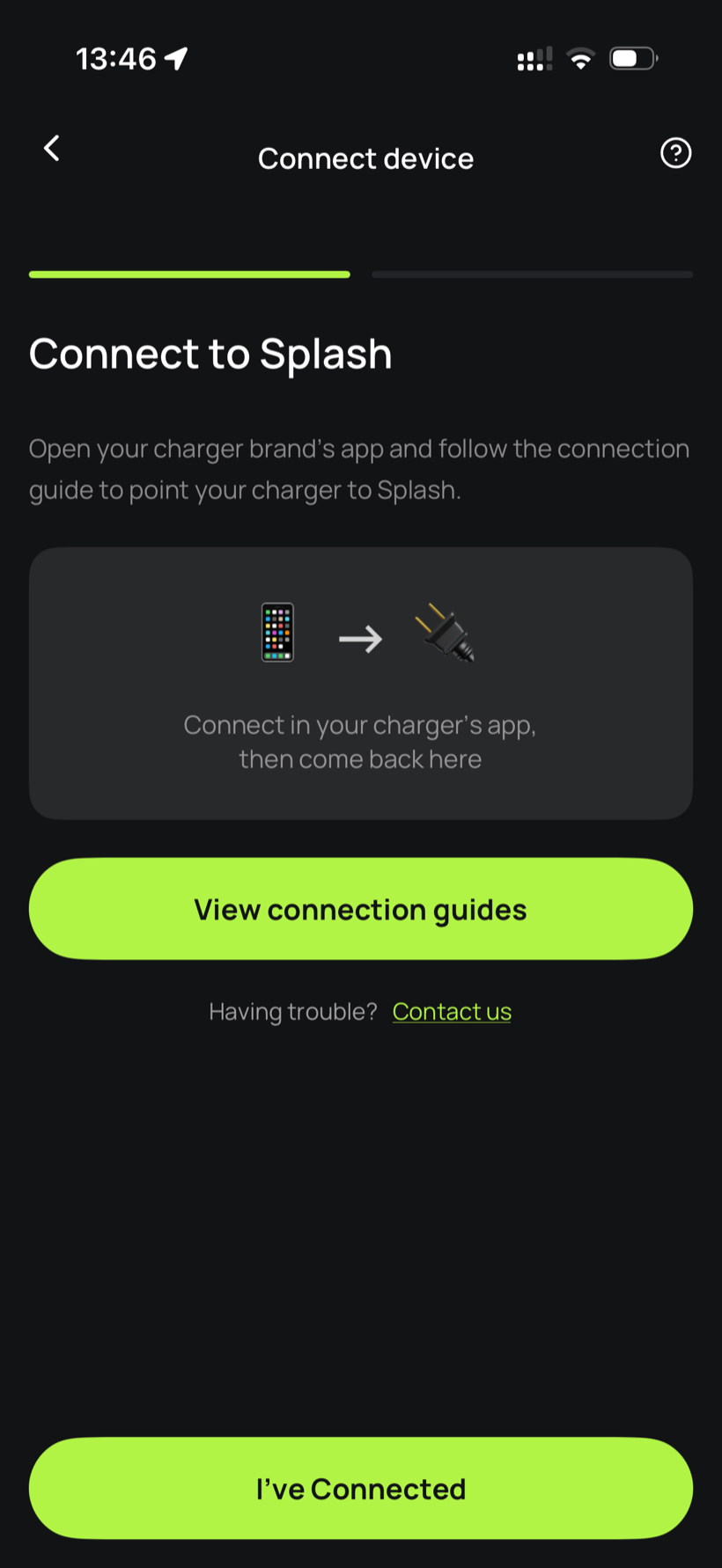
Tell Splash you're connected.
The app first asks you to connect through your charger brand's app. That's what you've just done in the steps above, so tap I've Connected.
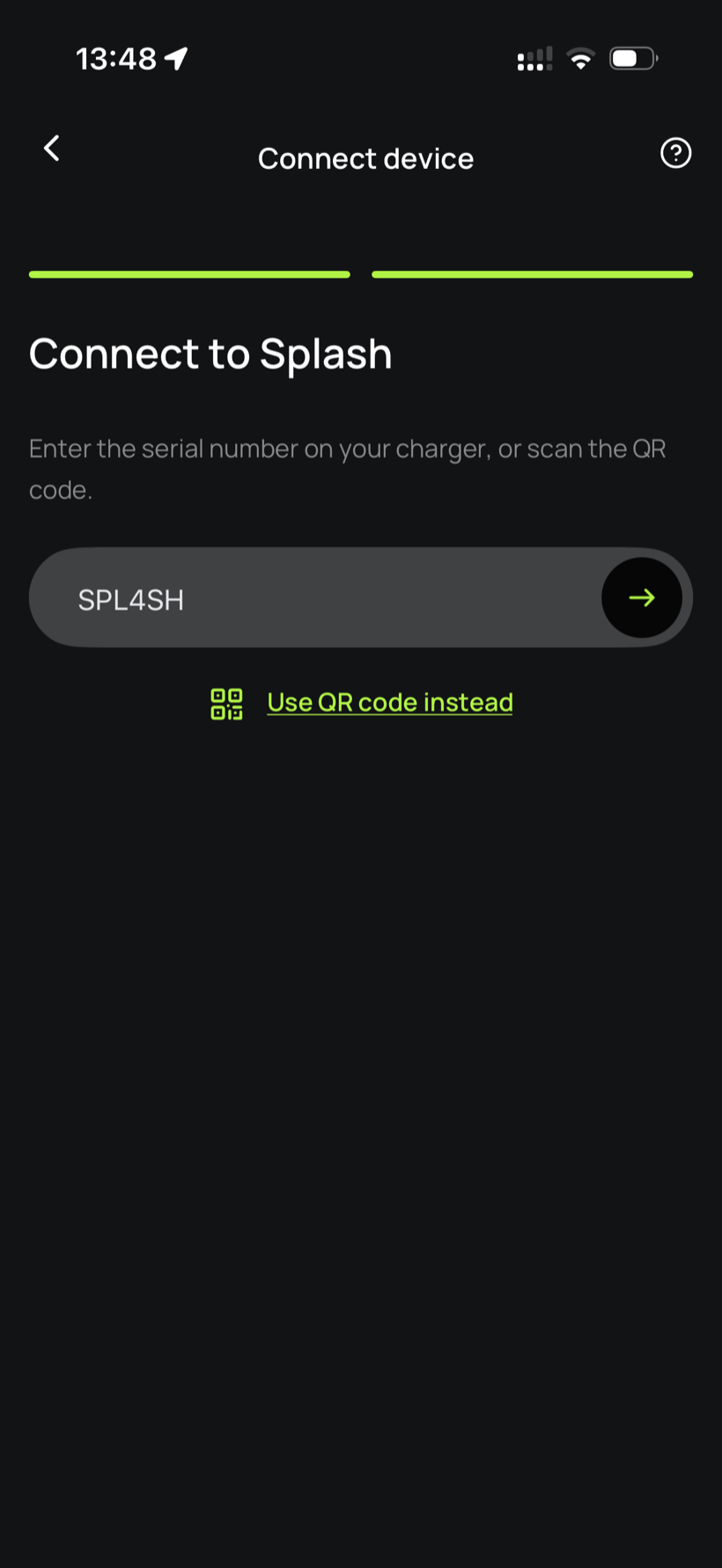
Enter your serial number.
Enter the serial number in the field.
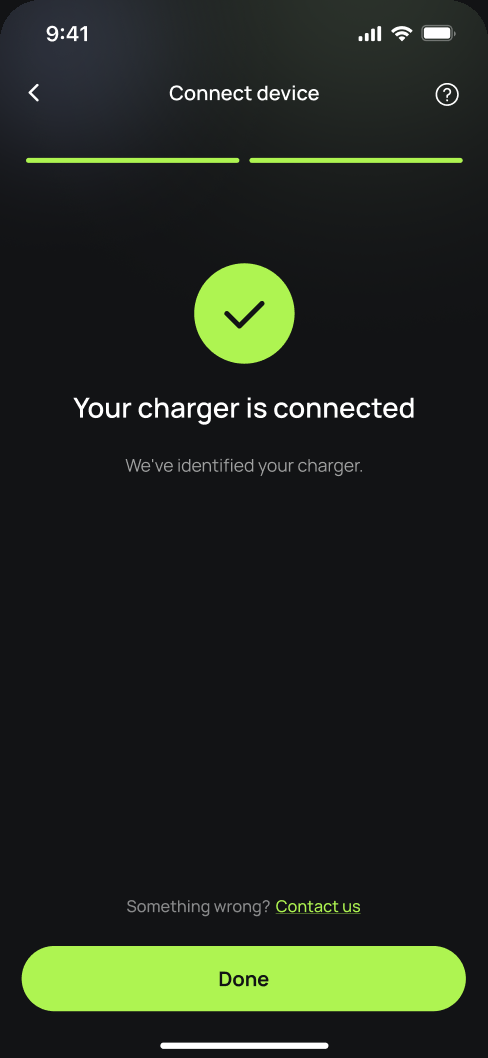
You're connected.
Splash finds your charger and confirms the connection. Tap Done.
Finish setting up in the app.
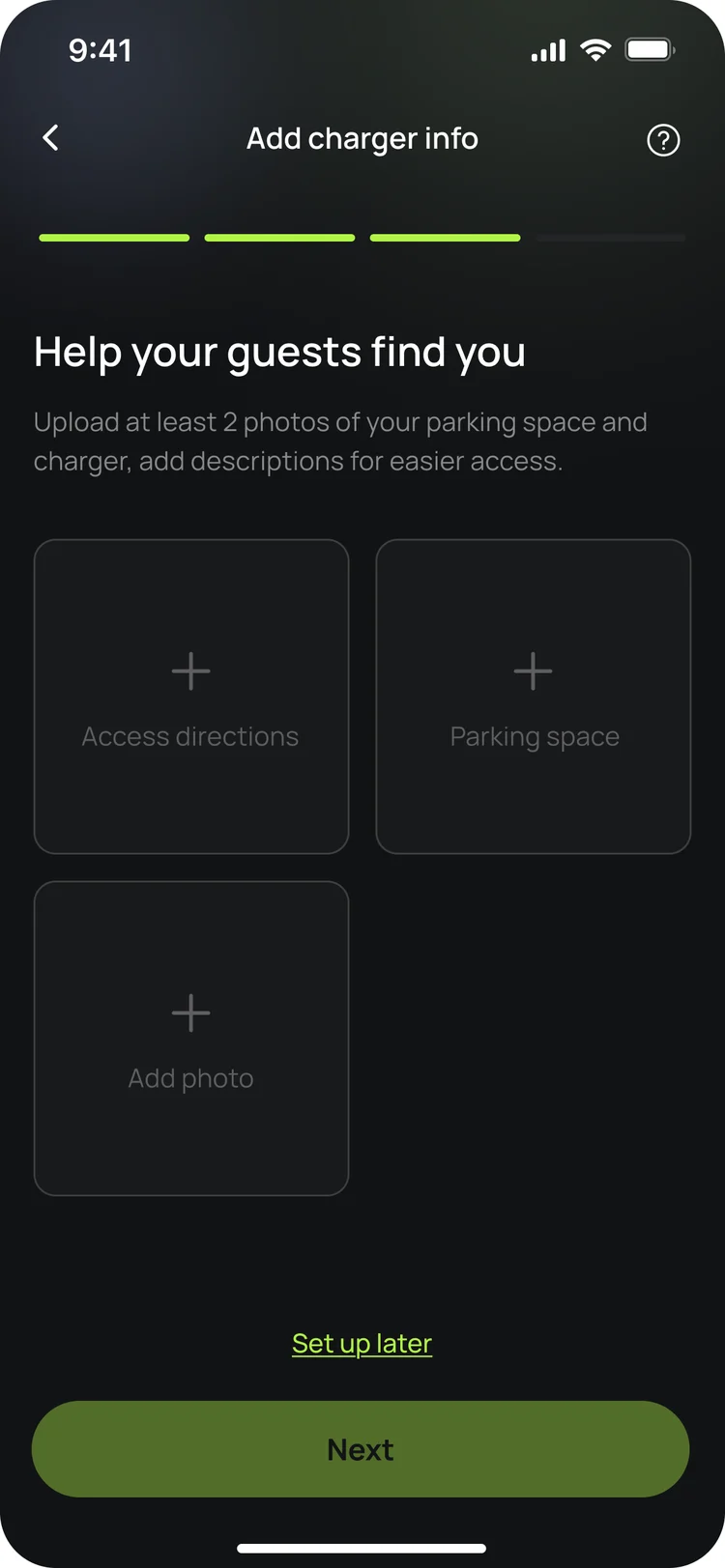
Your charger isn't live yet. In the app, add your charger's details, including at least two photos of your parking space and the way in, so guests can find it. Once you're done we'll know, and we'll post your Splash QR sticker out to you so guests can scan it to start a session.
Updated 4 Oct 2026